CARD’s 2026 PEER TO PEER FUNDRAISING CAMPAIGN
Every journey with autism has a different path but no family should walk it alone. At CARD, we stand beside children, teens, adults, and their families from the moment of diagnosis through every milestone that follows. Thanks to generous supporters like you, families find hope, guidance, and a community that truly understands.
The Difference You Make:
- A parent who feels lost after diagnosis finds strength in our Just for Moms and Just for Dads groups, where they connect with others who share their journey.
- A young adult discovers independence through our Job SEEKers program, gaining the skills and confidence to pursue a meaningful career.
- A child learns to ride the waves at Surf Camp, building friendships and joy in a safe, supportive environment.
- Dozens of children spend their summer in a camp where laughter, learning, and growth happen every single day.
Every program, every breakthrough moment, and every smile is possible because of donors like you. Together, we’re not just providing services, we’re creating brighter futures.
Your support empowers individuals with autism to thrive.
Every journey with autism has a different path but no family should walk it alone. At CARD, we stand beside children, teens, adults, and their families from the moment of diagnosis through every milestone that follows. Thanks to generous supporters like you, families find hope, guidance, and a community that truly understands.
The Difference You Make:
- A parent who feels lost after diagnosis finds strength in our Just for Moms and Just for Dads groups, where they connect with others who share their journey.
- A young adult discovers independence through our Job SEEKers program, gaining the skills and confidence to pursue a meaningful career.
- A child learns to ride the waves at Surf Camp, building friendships and joy in a safe, supportive environment.
- Dozens of children spend their summer in a camp where laughter, learning, and growth happen every single day.
Every program, every breakthrough moment, and every smile is possible because of donors like you. Together, we’re not just providing services, we’re creating brighter futures.
Your support empowers individuals with autism to thrive.
CARD’s Autism Friendly Initiative aims to build a community by partnering with local organizations dedicated to supporting individuals with Autism Spectrum Disorder (ASD) and related disabilities, as well as their families, all at no cost. Being "Autism Friendly" means creating a compassionate, welcoming, and nonjudgmental environment for people with ASD. Through the initiative, we offer practical training to staff on effective strategies to enhance autism-friendly experiences. Additionally, we advocate for creating internship and employment opportunities for individuals with ASD, promoting meaningful participation and inclusion. We are proud to have numerous Autism Friendly partners who share our mission of fostering an inclusive community in South Florida.
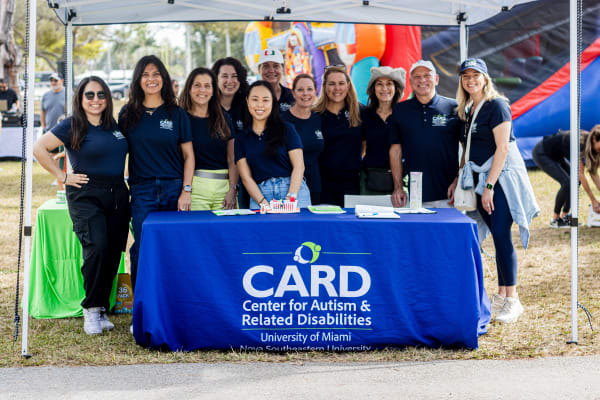
CARD proudly hosts annual Family Day Picnics across our region, a cherished tradition that brings together families from Miami-Dade and Broward counties. This event is designed to create a fun and inclusive environment where families can connect, share experiences, and enjoy a day filled with activities, food, and entertainment. It's a day of celebration, support, and community for everyone involved with CARD, fostering stronger bonds and creating lasting memories for the families we serve.
To continue supporting community events like our CARD picnic, we invite you to get involved. You can make a difference by creating your fundraising page, building or joining a team, or donating to CARD. Your contribution today can have a lasting impact.
The CARD Gala is a special evening dedicated to uplifting and supporting individuals and families affected by autism in South Florida. Every dollar raised directly benefits the Center for Autism & Related Disabilities (CARD), funding vital programs, services, and research—always provided at no cost to the families who need them most.
This unforgettable night shines a light on the incredible work of CARD and the strength of the community that surrounds it. Guests will enjoy an elegant evening filled with fine dining, live music, and dancing, while honoring the unwavering commitment of our community partners who make a lasting difference in the lives of so many.
On Saturday, April 18, 2026, we invite you to join us at the beautiful InterContinental Miami Hotel as we kick off Autism Awareness & Acceptance Month together. For more than three decades, CARD has stood alongside families, helping them navigate challenges, celebrate milestones, and find hope for the future. The Gala is not only a celebration of these journeys—it is also a lifeline, ensuring CARD can continue to provide these essential supports at no cost to families for years to come.
For more information, please visit https://gala.card.miami.edu/
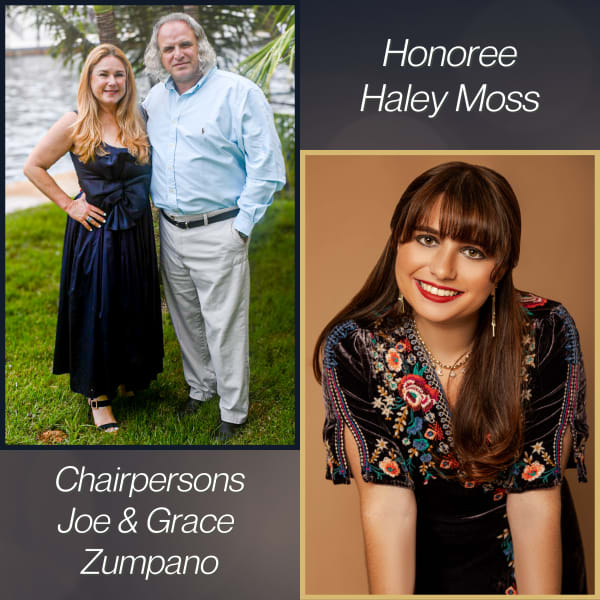
Joseph "Joe" Zumpano of Schenectady, New York, is a distinguished attorney, former athlete, and community leader. A Belen Jesuit Salutatorian (1987) and Harvard graduate (cum laude), he won the All-Ivy Title in swimming before earning his law degree from Georgetown and a Master of Public Health from Johns Hopkins.
Joey and his wife Grace, also a Senior Partner at their law firm, married in 1997 and have three children—Andrea, Lucas, and Jesse. Their youngest, Jesse, was diagnosed with severe autism at 20 months. They consider raising their children, especially Jesse, their greatest blessing.
Joey is President of Zumpano Patricios, a leading law firm with six offices nationwide, and Chairman of ZP Land Holdings Companies. He and law partner Leon Patricios have secured landmark legal victories, including cases against Fidel Castro and the FARC, and Joey became the first U.S. attorney to recover against a Mexican cartel under the Terrorism Risk Insurance Act. He has been named to Forbes’ Top 200 Lawyers, Hispanic Business Magazine’s 100 Most Influential Hispanics, and is a Life Member of the Council on Foreign Relations.
Beyond law, Joey and Grace support the South Florida community through philanthropy and leadership, from rescuing Cuban migrants to developing the Gian Zumpano Aquatic Center. In 2024, Casa Manresa honored them by naming Zumpano Hall.
CARD has been central to their autism journey, providing assessments, sibling support, and personal guidance from Drs. Durocher and Alessandri.
This year’s CARD Gala honors Haley Moss, who began her career at Zumpano Patricios as the first openly autistic attorney in the Florida Bar. Joey told her at her swearing-in, “As an attorney, you will have the opportunity to speak for those who cannot speak for themselves.” Haley has since become a nationally recognized advocate, author, and consultant on neurodiversity, appearing in major media outlets and advising corporations on inclusion.
Her honors include Forbes 30 Under 30 Local (2023), the ABA’s Breaking Barriers Award (2021), and UM-NSU CARD’s Outstanding Self-Advocate Award (2018). She is also the author of several books guiding autistic and neurodivergent individuals through education, independence, and professional life.
Haley lives in Miami and continues to inspire through her writing, advocacy, and work to create a more inclusive world.
Thank You to Our CARD Supporters!
The Center for Autism and Related Disabilities (CARD) is a collaborative initiative between the University of Miami and Nova Southeastern University, dedicated to serving the communities of Miami-Dade, Broward, and Monroe Counties. CARD's mission is to empower individuals with autism and related disabilities by providing resources, support, and services tailored to their unique needs. Through this mission, CARD strives to improve the quality of life for these individuals and their families, fostering a more inclusive and supportive community.
CARD is one of seven state-funded, university-based outreach and support centers in Florida, focused on enhancing the potential of people with autism spectrum disorders (ASD), dual sensory impairment, sensory impairments with other disabling conditions, and related disabilities.
In 2025, the Center for Disease Control announced that an estimated 1 in 31 children (among 8-year-olds) and 1 in 34 children (among 4-year-olds) have autism. Based on this data, it is estimated that nearly 130,000 individuals with autism live in the tri-county area (Miami-Dade, Monroe, and Broward Counties). CARD serves families, offering free support services, information, resources, referrals, and care coordination, among other critical community functions. With the rising number of individuals affected by autism, CARD needs your support to meet the growing demands of our community.
You can make a difference by creating your own fundraising page, starting a team, or joining an existing one! Every dollar you raise for CARD directly supports our programs and services, all of which are provided at no cost to families. These programs include support groups for family members, employment boot camps, surf and summer camps, social skills activity groups for teens, community outreach events, and much more. We invite you to join us in supporting YOUR Center for Autism and Related Disabilities. Together, we can positively impact the lives of so many!
Your support is essential to sustaining our programs and services. For more information about CARD, please visit: https://www.card.miami.edu/.