#FDMATCH25 supporting The Familial Dysautonomia Foundation

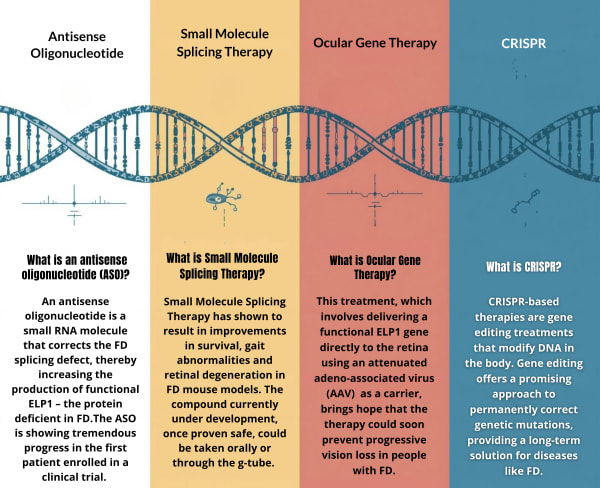
To ensure that genetic therapy will be accessible to all patients, we continue to pursue multiple treatment options. Through the tireless work of many brilliant scientists, the ongoing efforts of our dedicated clinicians at the Dysautonomia Center at NYU Langone, and the generous support of people like YOU--a total of FOUR gene therapies are currently in development for the treatment of FD:
Antisense oligonucleotide (ASO)
An antisense oligonucleotide is a small RNA molecule that corrects the FD splicing defect, thereby increasing the production of functional ELP1 – the protein deficient in FD. The ASO is showing tremendous progress in the first patient enrolled in a clinical trial.
READ more about the ASO study (pages 4-8 of Research Booklet)
WATCH (FD Day Clinical Presentation)
Oral Kinetin Derivatives:
Derivates of Kinetin, a plant-derived cytokinin, have shown improvements in survival, gait abnormalities and retinal degeneration in FD mouse models. The compound currently under development, once proven safe, could be taken orally or through the g-tube.
READ more about Oral Kinetin Derivatives (page 9 of Research Booklet)
WATCH (FD Day Research Presentation -12:26)
Intravitreal Gene Insertion:
This treatment, which involves delivering a function ELP1 gene directly to the retina using an adenovirus as a carrier, brings hope that the therapy could soon prevent progressive vision loss in people with FD.
READ more about Intravitreal Gene Insertion (page 9 of Research Booklet)
WATCH (FD Day Research Presentation -30:31)
CRISPR:
CRISPR-based therapies are gene editing treatments that modify DNA in the body. Gene editing offers a promising approach to permanently correct genetic mutations, providing a long-term solution for diseases like FD.
READ more about CRISPR (page 10 of the Research Booklet)
WATCH (FD Day – Research Presentation -43:20)
DONATE - Your gift helps fund the essential research currently underway to ensure longer and better-quality lives for people living with FD. And remember, your gift will be matched, Dollar-for-Dollar, by our Challenge Donors
BECOME A FUNDRAISER – Ask your friends, family and colleagues to support a cause that is important to you. Sign up now – or contact the Foundation for help getting started.
HELP US SPREAD THE WORD – Post and share on your favorite social media site