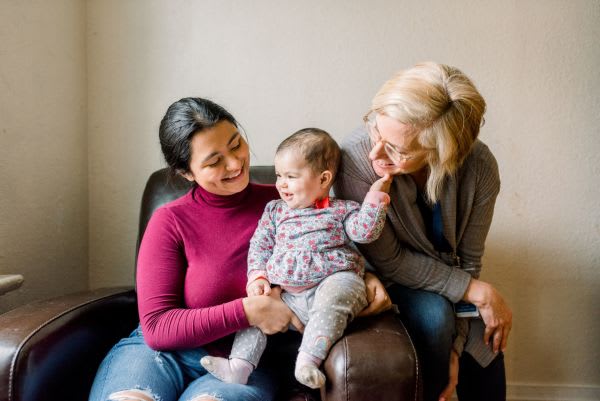
Fighting for Firsts supporting Healthier Moms and Babies
Allen County has one of the highest prematurity rates in the state of Indiana. Healthier Moms and Babies' preterm rate for their families is at 6% which is significantly lower than our county average.
As our campaign concludes, we'll ring in November, Prematurity Awareness Month, with a celebration.
You can help more babies celebrate their first birthdays--donate to your champion today!
First steps, first words, first birthdays and MORE - Healthier Moms and Babies is committed to Fighting For Firsts!!
In 2020, 10% of babies born in our community were born preterm—this is over 500 of our tiniest neighbors. Prematurity is the leading cause of infant mortality. We want to celebrate more firsts and help create a healthier community.
Our dedicated community leaders commit to being our Fighting for Firsts Champions. Each Champion has a goal to raise at least $2,500 for Healthier Moms and Babies throughout the month of October. Funds raised will be used to support prenatal home visitation and other critical support services to high-risk pregnant Moms throughout Allen & Noble Counties to combat the infant mortality rate. We’ll celebrate our champions and learn more about the impact of Healthier Moms and Babies at Fighting for Firsts event on Friday November 4th, 2022.