Paws To Be Thankful supporting Paws With A Cause


Your gift will change lives.
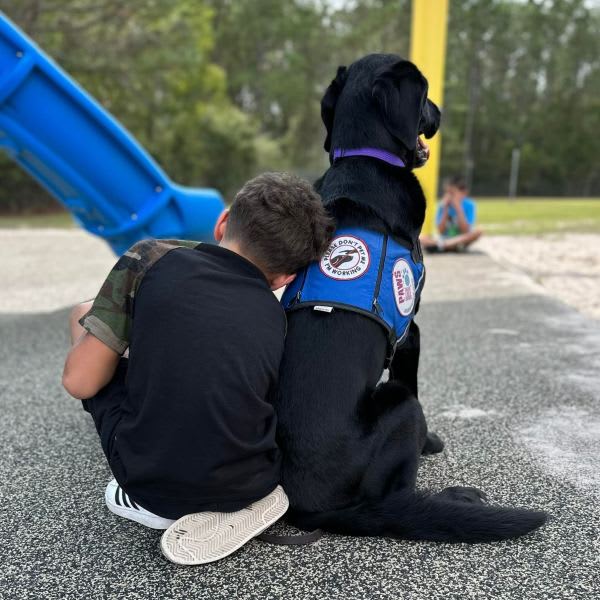
PAWS trains four types of Assistance Dogs: Service Dogs to help with a wide variety of disabilities, Seizure Response dogs, Hearing Dogs to alert our Deaf/Hard of Hearing clients to important noises around them, and SDA Dogs who help kids with autism.
We also partner with other non-profits to place Facility Dogs in schools, hospitals, long-term care facilities, and other places where a fuzzy face can brighten a stressful day.
Your gift will allow Paws With A Cause to train more dogs for their final placement as a working dog. Having the ability to provide support to our mission ensures the Dog-Client match is successful for years to come.
To date, more than 3,000 Assistance Dogs have been placed with clients nationwide. PAWS receives more than 1,000 Assistance Dog application requests annually.
The cost of a PAWS Assistance Dog is $35,000!
The sponsorship to breed, raise, train, place an Assistance Dog, and provide ongoing team support exceeds $35,000. PAWS clients do not pay to receive their Assistance Dogs. There is no insurance or government funding available to sponsor Assistance Dogs. PAWS funding comes from individual donations nationwide.
Don't forget: every donation will be doubled. A gift of $50 will automatically become $100!
The season of gratitude is just around the corner, and we have so much to be thankful for at PAWS, especially the impact YOU, our PAWS Friends and Family have on our extraordinary organization.
Starting on Tuesday, November 14, and running until Giving Tuesday, November 28, PAWS will be hosting our annual Paws To Be Thankful campaign. During this 14-day campaign, we are raising money to help us continue our mission of increasing independence and quality of life for people with disabilities nationally through custom-trained Assistance Dogs.
As in years past, some of our generous donors have agreed to match the money donated to this campaign. So, every dollar will be doubled! Now is the time to double your impact by making a gift to our Paws To Be Thankful campaign. We are so grateful for your support!