Stay; Tomorrow Needs You supporting Barb Smith Suicide Resource & Response Network

An inspiring event of hope, awareness, and community as we come together to break the stigma surrounding mental health and suicide. This fundraiser directly benefits the Barb Smith Suicide Resource & Response Network, a dedicated organization providing critical resources, education, and support to individuals and families impacted by suicide.
Through your generosity, We can foster understanding and create a culture where reaching out for help is embraced without fear or judgment. Together, we can make a difference—one conversation, one life, one community at a time. Enjoy live entertainment, Silent and live auctions, delicious food, cornhole Tournament, and opportunities to engage with this vital mission. Let’s break barriers and build hope, together.
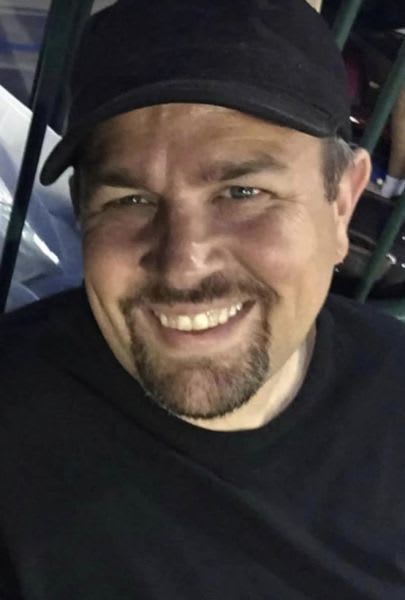
Ryan has been JD/MCing our event since its inaugural year in 2023. He keeps the energy alive with music, karaoke, and his unique brand of "jokes," all while ensuring the timeline runs smoothly. We truly appreciate everything he brings to the table—our fundraiser wouldn’t be the same without him!
Haley Ann has been singing and songwriting for as long as we can remember. Her beautiful voice and kind spirit will bring a fresh energy and incredible vibe to the event. We’re thrilled to welcome her and can’t wait to hear her “Blaze’n!”
🎶 Live from Nashville to Sanford! 🎶
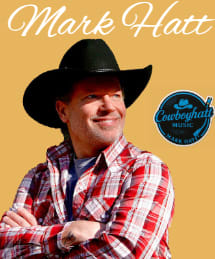
We are beyond thrilled to welcome Mark Hatt to our stage, bringing his incredible acoustic talent straight from the heart of Music City. His journey to join us here in Sanford, MI is a gift we cannot thank him enough for.
For one unforgettable hour, we’ll all be blessed by the soulful sounds and artistry of this remarkable musician. Come ready to be inspired, moved, and entertained—it’s a performance you won’t want to miss!
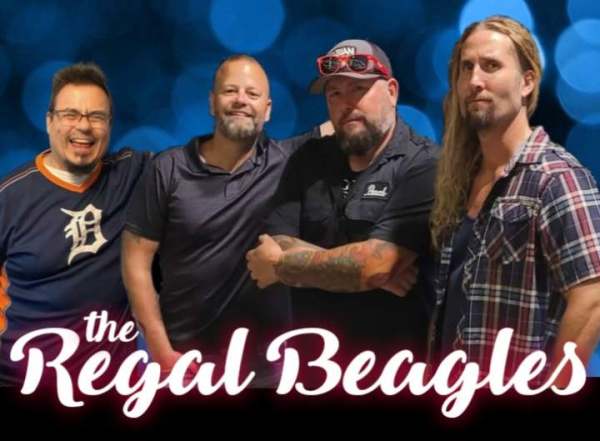
The Regal Beagles are our staple band, and we can’t get enough of their music or their kind hearts. Year after year, they make time to be part of this event, bringing their incredible energy and rocking the stage every time. Your commitment to our fundraiser and cause continues to inspire us, and we’re so grateful to always count on the four of you to be there!
Coming back for a third year, Adaboy! blew us away last year with their incredible talent. This amazing band wholeheartedly supports our mission to prevent suicide and eliminate stigma. They share our passion for this cause, and we are so grateful for their continued support. Thank you, Adaboy!